
Troubleshooting common platform errors
This article explains common platform errors, what they mean, and what you can try before contacting support.
First checks
Before contacting support, try these steps:
- Refresh the page.
- Log out and log in again.
- Check whether the same issue occurs in another browser.
- Check whether a colleague experiences the same issue.
If the issue remains, contact support@retailsonar.com or hit the contact support button in the platform
When contacting support, include:
- a screenshot of the error;
- the module where the issue occurred;
- the action you performed just before the error appeared;
- the location, simulation, project, framework, or period you were working with, if applicable.
Technical errors
| Error message | What it means | What you can do |
|---|---|---|
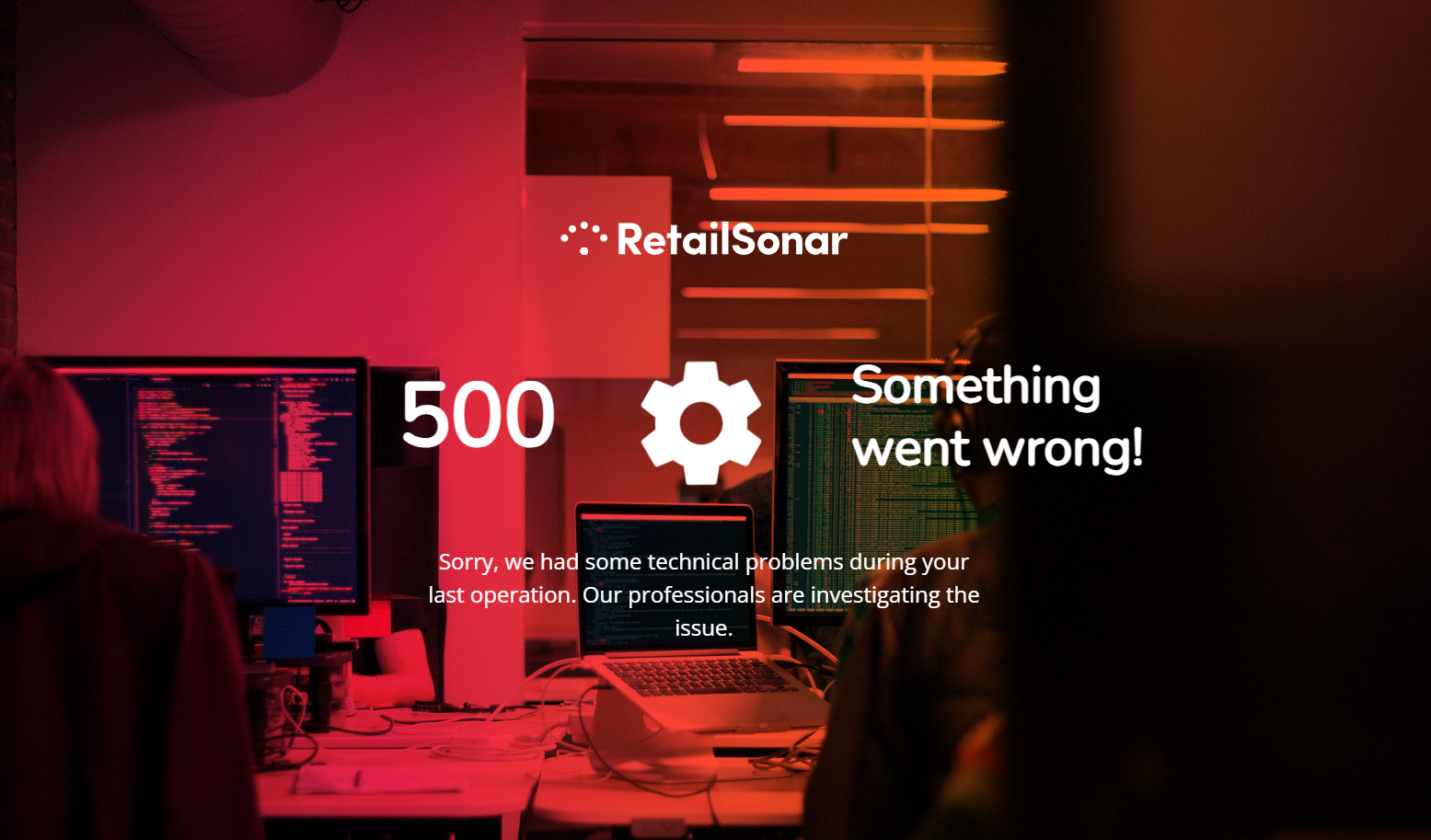
Server error 500 “Internal server error” | The server encountered an unexpected issue and could not complete the request. | Check whether you are using the correct link. If the issue remains after the first checks, contact support. |
“Service unavailable” | The platform is temporarily unable to process your request, for example because of overload, maintenance, or a technical interruption. | Try again after a short moment. If the service remains unavailable, contact support. |
General server error | Your session may have expired, or there may be a technical configuration issue. | If the error disappears after refreshing or logging in again, no action is needed. If it continues, contact support. |
Server error 401 | You are not authorized to access the requested page, module, or action. | Contact support to check your permissions. |
SQL statement error | The platform could not correctly execute a database request. This is usually a technical or configuration issue. | Contact support. |



Other errors
'No location was found'

It means that the model did not calculate results for the selected marker location.
What you can do
Move the marker slightly by dropping it again almost on the same location, then click Calculate again.
If the issue remains, contact support and include the address or coordinates of the tested location.
'No items found' error
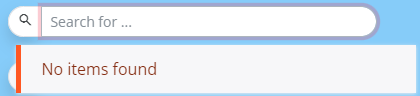
This error can appear when you type a location in the search bar and no search results are returned.
It means that the platform could not find a matching address or location for your search query.
What you can do
Check the spelling, try the full street name, or use an abbreviation if applicable. For example, try Bd instead of Boulevard.
If the location is still not found, test another nearby address. If that works, contact support and include the address that could not be found.
Empty Location Performance Framework
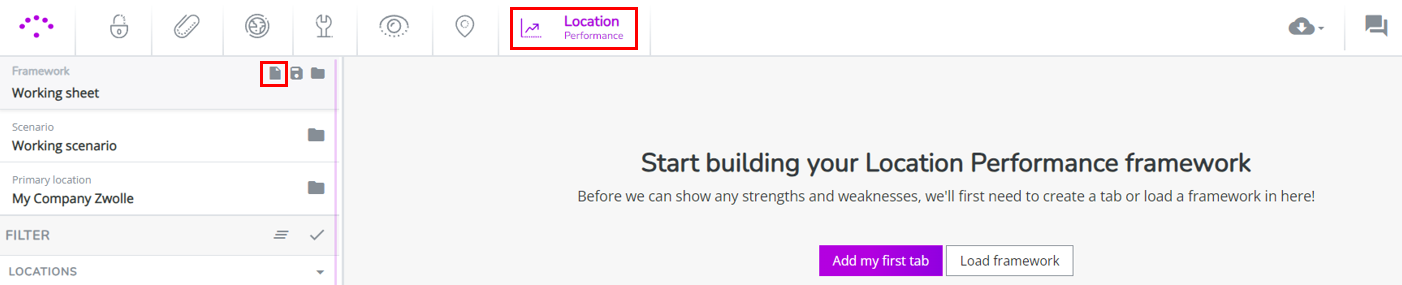
This can happen when no framework is loaded or when an empty framework was selected.
What you can do
Click the Select framework icon and choose Use default framework.
Do not select Start from scratch, unless you are a super user who needs to build a custom framework. The default framework is prepared by your consultant.
If the default framework still does not appear, contact support.
“#NA” or “!!!” values in framework columns
These values usually mean that data could not be displayed or calculated correctly for the selected framework, location, or period.
This can happen when the framework is outdated, the selected baseline period is not supported, or the framework has only been calculated for the most recent period.
What you can do
Reload the default framework and select the most recent baseline period.
If the values are still incorrect, contact support and include the framework name, selected baseline period, and a screenshot of the affected columns.
Wrong or “#NA” location characteristic
This means that a location characteristic is missing, incorrect, or not configured correctly. For example, the surface area of a location is wrong.
This usually needs to be corrected by your consultant or the support team.
Contact support and include the location name, the incorrect or missing characteristic, and the value you expected, if known.
Unable to draw drivetime isochrones around a location
This can be caused by a temporary session issue, a connection issue, or a technical problem with the calculation.
What you can do
Log out and log in again, then try drawing the isochrone again.
If the issue remains, test another location to check whether the problem is location-specific. When contacting support, include the location and drivetime settings you used.