
How to Find Interesting Locations in Batch (Optimize)
When to use this workflow?
Use this workflow when you want to screen multiple locations at once and quickly identify which areas may be interesting to study further — rather than evaluating one location at a time in Location Planning.
This is useful when you want to:
- Compare many potential sites in one pass
- Evaluate a list of addresses against market opportunity
- Detect promising areas before doing a more detailed, single-location analysis
If you already have one specific location in mind, you don't need this workflow — go straight to [Getting Started in Location Planning] instead.
Note that all information in the following steps regarding "Optimal reduction" and "Optimal characteristics" are not relevant for PropertyScanner platform users.
1. Make sure you're in the Optimize module

2. Create a Hotspot project
Follow this card: Create a project and choose hotspot exercise
3. Select a period
Follow this card: Select a period and choose "Baseline"
4. Choose a dataset
Follow this card: Choose a dataset. Follow one of the following parts (and skip the rest):
- "Start with your own data set"
- "Choose an existing brand from the datastore"
5. Prepare your list of locations
Follow this card: Prepare your list of locations and follow Step 1 and Step 2.
6. Upload the template
Follow this card: Upload the template and fill out the appropriate columns
7. Calculate the project
Follow this card: Calculate the project
8. Interprate the results
The resulting table shows, for each location and segment, the Developable surface within the different catchment areas: 10 minutes, 15 minutes, and 20 minutes.
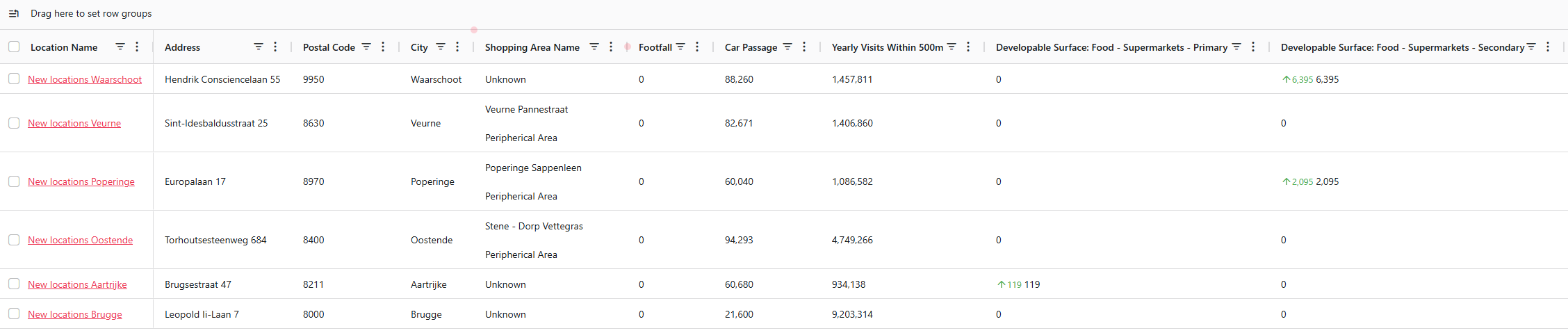
This lets you quickly compare locations and identify where there may still be market room for specific retail segments — the same Developable m² logic used in the General Report, applied across many locations at once instead of one.
Use the results in the table as a first screening, not as a final answer. Locations or areas with positive Developable surface are good candidates to carry forward into a detailed analysis.
9. Analyze the locations
Follow the steps in the first part of this card to analyze the results in a more detailed way.
10. Export results
Follow this card: Export results to analyze everything in excel.
11. How to update your list of locations after calculations
If you want to do adaptations to 1 or more locations, follow this card: How to update your list of locations after calculation (optionally)
12. Create the appropriate report
For each shortlisted location, build a detailed business case by creating the appropriate report via the button on the right hand side of a location
- [Which Segments Have Room? (General Report)]
- [Which Segment Opportunity Should I Explore Further? (Segment Report)]
- [Which Nearby Retailers Could Relocate to My Location? (Relocation Opportunities Report)]
- [Which Retailers Are Missing From the Area? (Expansion Opportunities Report)]
Related articles
- Possible Excel import failures
Learn what to check if your Excel template cannot be uploaded or processed correctly. - Outdated results after baseline changes
Understand why Optimize results may become outdated when changes are made to the baseline after calculation.